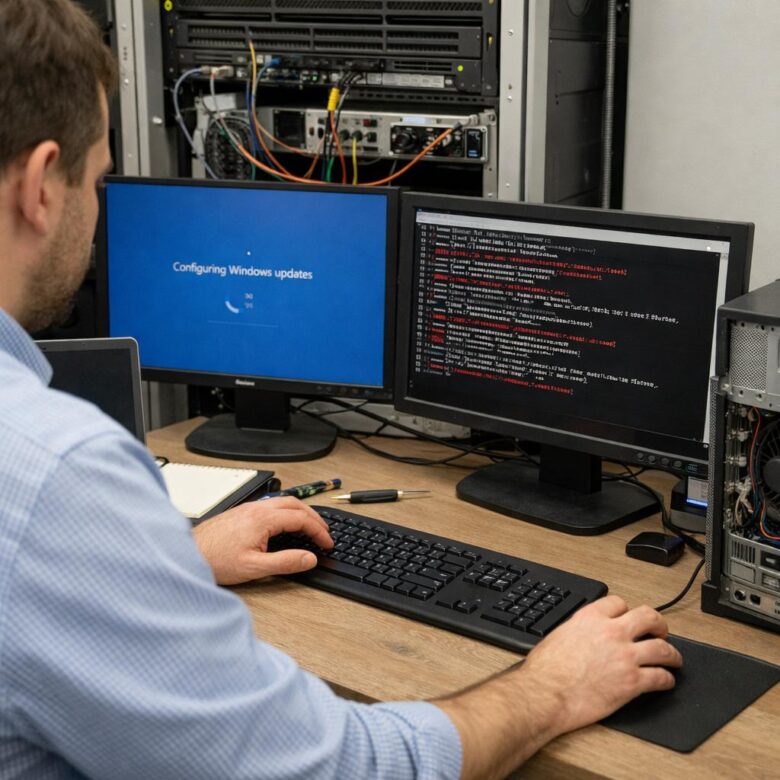
When an unattended bot stops working after an operating-system update, begin with the execution environment rather than immediately changing the workflow. Check whether the machine completed maintenance, the RPA service reconnected, the unattended session can open, credentials remain valid, and required applications and integrations still behave as expected.
Preserve the first error, isolate the failed layer, change one dependency at a time, and resume production only after technical validation and business reconciliation.
Check the machine, RPA agent, control-plane connection, unattended session, identity, application dependencies, workflow step, and business result in that order. Repair the first failed layer instead of reinstalling components or rewriting selectors without a confirmed cause.
An OS update is a production change for an unattended automation environment. A cumulative or feature update may arrive alongside a restart, driver change, browser update, runtime change, endpoint-security policy, or Group Policy refresh.
The visible workflow error may therefore be indirect. For example, an element-not-found error can occur because the application did not open, a browser integration is unavailable, a first-run prompt covers the page, or the unattended desktop uses a different display configuration.
Why OS Changes Can Affect Unattended Bots
Session dependencies
Desktop automation may require a valid Windows login, an available interactive session, the expected user profile, a compatible resolution, and access to the correct desktop.
Component dependencies
Browser extensions, Java integration, .NET components, Office add-ins, Citrix clients, VPN software, drivers, and RPA agents can affect execution.
Policy dependencies
Group Policy, endpoint security, logon rights, folder permissions, firewall rules, credential controls, and application allowlists may alter access or startup behavior.
Contain the Failure Before Troubleshooting
Repeatedly restarting a bot without identifying its last completed action can create duplicate or incomplete transactions. Containment should protect the business state while preserving diagnostic evidence.
Immediate response checklist
Do not blindly rerun the full workload
Reconcile completed transactions against the source system and queue before restarting. Use a diagnostic item or controlled subset first. Recovery is incomplete until both the technical execution and the resulting business records have been checked.
Match the Symptom to the First Layer to Check
| Failure Signature | Likely Layer | Verify First |
|---|---|---|
| Job remains pending or no runtime is available | Machine, agent connection, licensing, or assignment | Machine availability, RPA service, control-plane connection, runtime allocation, and account mapping |
| Login fails or an unattended session cannot be created | Credentials, account status, logon rights, or session policy | Password status, lockout, allowed logon type, session policy, and profile availability |
| Bot works manually but fails unattended | User context, privilege, profile, or desktop session | Execution account, environment variables, certificates, network paths, display settings, and application elevation |
| Element, selector, or window cannot be found | Application state, browser integration, UI, or display configuration | Launch result, extension status, browser version, dialogs, zoom, scale, window state, and titles |
| Access is denied or a file path is unavailable | Permissions, endpoint security, storage, or network identity | NTFS and share permissions, application-control events, service-account access, and reliance on mapped drives |
| A dependency or package cannot be loaded | Runtime, package cache, feed, .NET, Java, or platform component | Installed versions, package availability, proxy access, runtime compatibility, and component logs |
| The application starts slowly and the bot times out | Post-update initialization, scanning, resource pressure, or network delay | Application launch time, CPU, memory, disk, endpoint scanning, VPN, proxy, and timeout settings |
| Only some machines fail | Environment drift | Compare updates, drivers, policies, extensions, runtimes, and local configuration with a healthy machine |
Structured Troubleshooting Runbook
Confirm the timeline and scope
Compare the last successful job with the first failed job. Determine whether the failure followed an update, reboot, policy refresh, browser change, driver deployment, or security-tool change.
- Identify every machine that received the same change.
- Check whether all processes fail or only workflows using one application.
- Confirm whether the issue affects production, test, or both.
Verify that maintenance completed
Confirm that the machine is reachable, no restart remains pending, the system clock is correct, and required disks and network interfaces are available. Check whether the machine is waiting at a recovery, privacy, or login screen.
Check the RPA agent and control-plane connection
Confirm that the robot or Bot Agent service is running under the expected account and that the device is connected, licensed, and assigned to the correct environment, folder, or runtime resource.
Capture service state and errors before an authorized restart so the original evidence is not lost.
Validate the unattended identity and session
Verify that the account is enabled, unlocked, unexpired, permitted to use the required logon type, and able to load its profile. Test access to the approved credential vault without exposing secrets in logs, screenshots, tickets, or workflow arguments.
- Check for password rotation or expiration.
- Confirm local, application, and network permissions.
- Look for legal notices, MFA prompts, privacy screens, or other interactive dialogs.
- Check whether another active, locked, or disconnected session interferes with execution.
Inspect browser and application integrations
Open the application under the unattended account and confirm that it reaches the expected state without a first-run screen, changed authentication prompt, modal dialog, or unexpected elevation request.
- Confirm that required browser extensions or native-messaging integrations are installed and enabled.
- Check browser version, enterprise policy, profile, zoom, and download behavior.
- Verify required Java, SAP, Citrix, terminal, Office, or other application integrations.
- Compare the privilege level of the application and the automation process.
Check security, network, and storage access
Review endpoint-security alerts, firewall or proxy changes, certificates, API access, database authentication, network shares, email accounts, and application-specific service credentials. Prefer UNC paths where a mapped drive may exist only in an interactive user session.
Compare environment drift
Compare the failed machine with a healthy machine or approved baseline. Focus on differences connected to the failure instead of reinstalling every dependency.
- OS build and update history
- Browser and extension versions
- RPA agent and activity-package versions
- Group Policy and endpoint-security status
- Display scale and screen resolution
- Installed runtimes, drivers, clients, and add-ins
Run the smallest safe validation
Use a diagnostic workflow or a non-production transaction that exercises login, application launch, element detection, required read/write access, and logout without creating an irreversible business action.
Resume with a canary
Restore one machine or a small process subset first. Monitor technical exceptions, business exceptions, queue movement, completed records, and duplicate detection before restoring the full schedule.
Evidence to Collect Before Making Changes
RPA platform evidence
- Job and transaction IDs
- First error and complete stack trace
- Machine and runtime assignment
- Robot or Bot Agent logs
- Queue status and retry history
- Package and dependency versions
- Audit events and configuration changes
Operating-system evidence
- Update and reboot times
- System and application event logs
- Failed or delayed services
- Account lockout or logon events
- Endpoint-protection alerts
- Group Policy changes
- Browser and driver versions
Read-Only Windows Checks
Authorized administrators can use the following commands as starting points for evidence collection. Service display names and available event logs vary by platform and installation.
Get-Service |
Where-Object {
  $_.DisplayName -match "UiPath|Automation Anywhere|Blue Prism"
} |
Select-Object Status, Name, DisplayNameGet-WinEvent -LogName System -MaxEvents 200 |
Where-Object {
$_.LevelDisplayName -in @("Critical", "Error")
} |
Select-Object TimeCreated, ProviderName, Id, Message
Get-WinEvent -LogName Application -MaxEvents 200 |
Where-Object {
$_.LevelDisplayName -in @("Critical", "Error")
} |
Select-Object TimeCreated, ProviderName, Id, MessagequserTest-NetConnection -ComputerName your-service.example.com -Port 443Follow authorized operating procedures
Do not disable security tools, expose credentials, remove updates, or change production policy without approval, a rollback plan, and an assessment of the business and security impact.
Linux Workers and Headless Automations
For cross-platform or headless workers, check service status, package and runtime changes, permissions, containers, certificates, environment variables, network routes, and any required browser or display process.
systemctl --failed

journalctl -b -p err
Platform-Specific Starting Points
| Platform | Start With | Look For |
|---|---|---|
| UiPath | Orchestrator jobs, machines, monitoring, unattended sessions, Robot logs, and authorized troubleshooting sessions | Machine availability, session creation, Robot service, account mapping, dependencies, and the first exception |
| Automation Anywhere | Control Room activity, device status, Bot Agent logs, audit records, and workload status | Bot Agent connectivity, device login, permissions, credential access, package compatibility, and execution errors |
| Blue Prism | Session logs, runtime-resource status, system logs, work queues, and authorized diagnostic logging | Runtime availability, application integration, environment variables, queue state, and warning or error events |
| Microsoft Power Automate | Machine runtime status, desktop-flow run history, connection references, gateway status, and environment monitoring | Machine registration, connection health, desktop session, permissions, application changes, and failed actions |
Choose the Recovery Based on the Confirmed Cause
Prefer the least disruptive approved change that restores the expected configuration. Do not use a broad rollback or security exception when a narrower service, session, credential, or integration fix addresses the confirmed failure.
| Confirmed Cause | Preferred Response | Avoid |
|---|---|---|
| A required service did not restart | Capture the error, restore the approved service configuration, start it through authorized procedures, and test connectivity. | Repeated reboots without reviewing the service failure. |
| An account is locked or a credential expired | Coordinate with identity administrators, restore the approved account state, update the vault, and validate the unattended login. | Embedding a password in the workflow. |
| Browser integration or policy changed | Restore the approved extension and policy configuration, or update the automation through controlled development and release procedures. | Disabling browser security controls globally. |
| The application UI changed permanently | Update selectors or anchors in development, test the change, review it, and release a versioned package. | Editing the production package directly. |
| A security policy blocks a required action | Review the alert with security staff and design an approved, narrowly scoped solution. | Disabling endpoint protection or broad policy controls as a shortcut. |
| An update has a confirmed incompatibility | Use the approved rollback, deployment hold, or vendor-remediation process with security oversight. | Removing security updates from every bot machine without risk review. |
Post-Update Validation Checklist
- The update completed and no reboot remains pending.
- The machine is reachable and reporting normally.
- The Robot or Bot Agent service is healthy.
- The orchestrator or Control Room connection is active.
- The required runtime and license assignment are available.
- The unattended account can create the required session.
- Credential-vault access succeeds without exposing secrets.
- Required browser and application integrations are active.
- Applications open in the expected state.
- Network shares, APIs, and other dependencies are reachable.
- Endpoint security shows no unresolved block affecting the process.
- One controlled transaction completes correctly.
- The business records and queue state reconcile.
- The canary remains stable before the full schedule resumes.
Preventing Patch-Related RPA Outages
Use a representative patch ring
Patch a small group first using the same OS, security policy, RPA runtime, browsers, integrations, and applications as production.
Maintain an approved baseline
Record OS builds, RPA components, browser versions, extensions, drivers, policies, display settings, service accounts, and application dependencies.
Run post-restart health checks
Validate machine connectivity, agent status, session creation, vault access, application launch, network access, and a reversible transaction.
Monitor business outcomes
Track both technical execution and resulting records so an apparently successful run does not hide an incomplete business outcome.
Design for recovery
Use stable selectors, explicit application states, bounded retries, clear timeouts, idempotent transactions, and recoverable queue processing where the platform and process allow them.
Document rollback responsibilities
Maintain approved images, configuration records, package versions, backups, escalation paths, and decision authority for deployment holds or rollback.
When to Change the Workflow
Restore the environment when the failure is caused by a stopped service, invalid session, expired credential, blocked dependency, or unintended configuration drift. Change the workflow when the application has changed permanently or the automation relies on fragile assumptions.
Workflow redesign may be appropriate when:
- The bot uses fixed coordinates or images when stable selectors are available.
- The process assumes that an application always opens at the same speed.
- A retry can create duplicate business transactions.
- The workflow cannot resume from its last safe checkpoint.
- Logs do not identify the failed step or relevant execution context.
- The automation depends on a mapped drive available only in an interactive session.
- The bot cannot distinguish a technical failure from a valid business exception.
Patch Governance for RPA Environments
The change record should connect endpoint management, RPA operations, application ownership, security, infrastructure, and the business process owner. It should identify:
- Affected machines and processes
- Included updates, drivers, browsers, and policies
- Pilot and later deployment rings
- Responsibility for pausing and resuming schedules
- Required technical and business health checks
- The method for reconciling duplicate or incomplete transactions
- Authority to approve a rollback or deployment pause
- The process for confirming business readiness
Avoid simultaneous deployment to every bot machine
A staged deployment provides an opportunity to identify compatibility problems before the same change reaches the full automation environment. The pilot should exercise representative workloads rather than only confirm that the machines restarted.
For broader operating-model guidance, read Senawe’s guide on scaling RPA Centers of Excellence across multinational organizations.
Official Sources and Further Reading
- UiPath Orchestrator: Configuring Automation Capabilities
- UiPath Robot: Unattended Installation Command Examples
- Automation Anywhere: Analyze Bot Agent Logs
- Automation Anywhere: Windows Auto-Login and Session Behavior
- SS&C Blue Prism: Troubleshooting with Diagnostic Logging
- Microsoft Intune: Manage Windows Update Ring Policies
- Microsoft Intune: Configure Gradual Update Rollouts
- Microsoft Intune: Configure Driver Update Policies
Editorial note: This article provides general guidance for authorized enterprise operations. Platform versions, operating systems, security policies, service names, and administrative procedures vary. Validate recovery actions against current vendor documentation and your organization’s security, change-management, business-continuity, and access-control requirements.

The Senawe Editorial Team creates practical, research-based content about enterprise AI, robotic process automation, data analytics, digital transformation, and emerging business technologies. Our goal is to make complex technical topics easier to understand while helping professionals evaluate tools, strategies, risks, and implementation decisions with greater confidence.